
Change Your Password – MacOS Tahoe (26.x.x)
Before You Change Your Password
To reduce potential issues from arising during the password change process, do the following before changing your password:
- Open the “Apps” icon in your Mac’s dock.
- Search for and open “Self Service.”
- Search for “Fix AD Binding.” It should have a chain icon.
- Click on “Repair.”
- Once the Fix AD Binding process has completed, it should say “Reinstall.” Do not click anything further.
- Quit out of Self Service and restart your laptop.
Password Requirements
Please note the following password requirements before changing your password:
- Must be a completely NEW password (The system will reject reused old passwords).
- Must contain 3 out of the 4 items:
- Uppercase character
- Lowercase character
- Number
- Special character
- Must be AT LEAST 8 characters long
Changing Your Password (MacOS Tahoe)
1. Click on the Apple logo in the top-left hand corner and select “System Settings.”
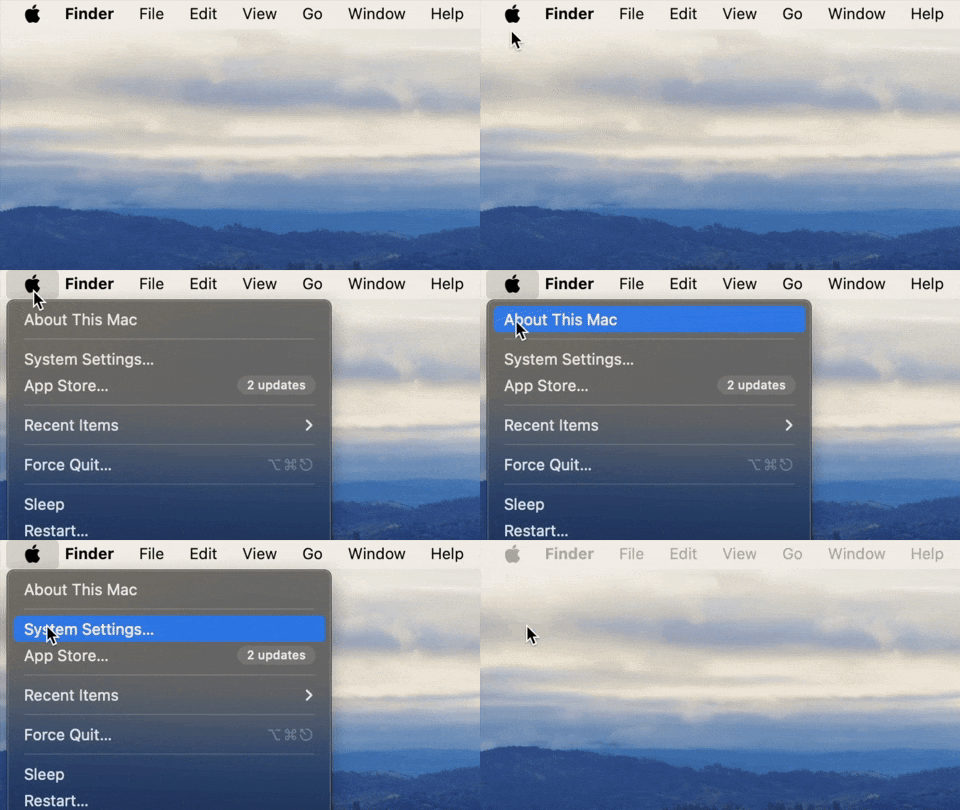
2. On the left hand menu, select “Touch ID & Password” and click on “Change…”

3. In the “Old Password” field, enter your current password.
4. In the “New Password” field, enter your new password. Ensure that it meets all of the password requirements listed above.

FAQs:
This means that:
1. Your new password does not meet all of the password requirements listed above.
OR
2. Your new password is too similar to your old/current password.
Click “Ok” on the error message and try again. Be sure to meet all password requirements and create a completely unique password.
Refer to the steps in the “Before You Change Your Password” section. You will need to launch the Self Service app, search for “Fix AD Binding,” and run the process.
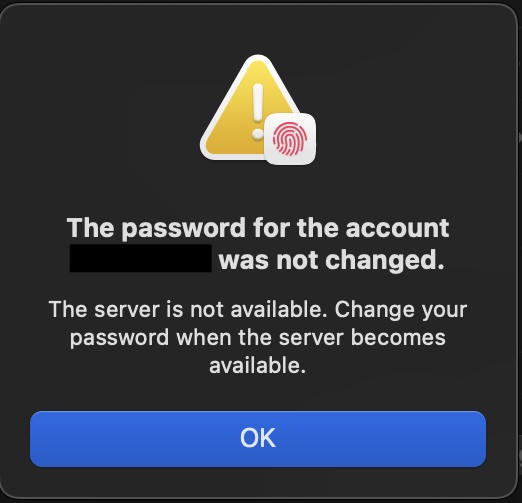
Please visit a Wahi Lolouila for assistance. We can only assist with resetting your password in-person. You may find our hours of operation here.