
Performing MacOS Updates (Sequoia.xx.xx)
Prerequisites | Before You Start | Instructions | FAQs
Prerequisites
This article only applies to laptops running the most current major version of macOS (i.e. Sequoia 15.x.x).
To determine if this article applies to your device:
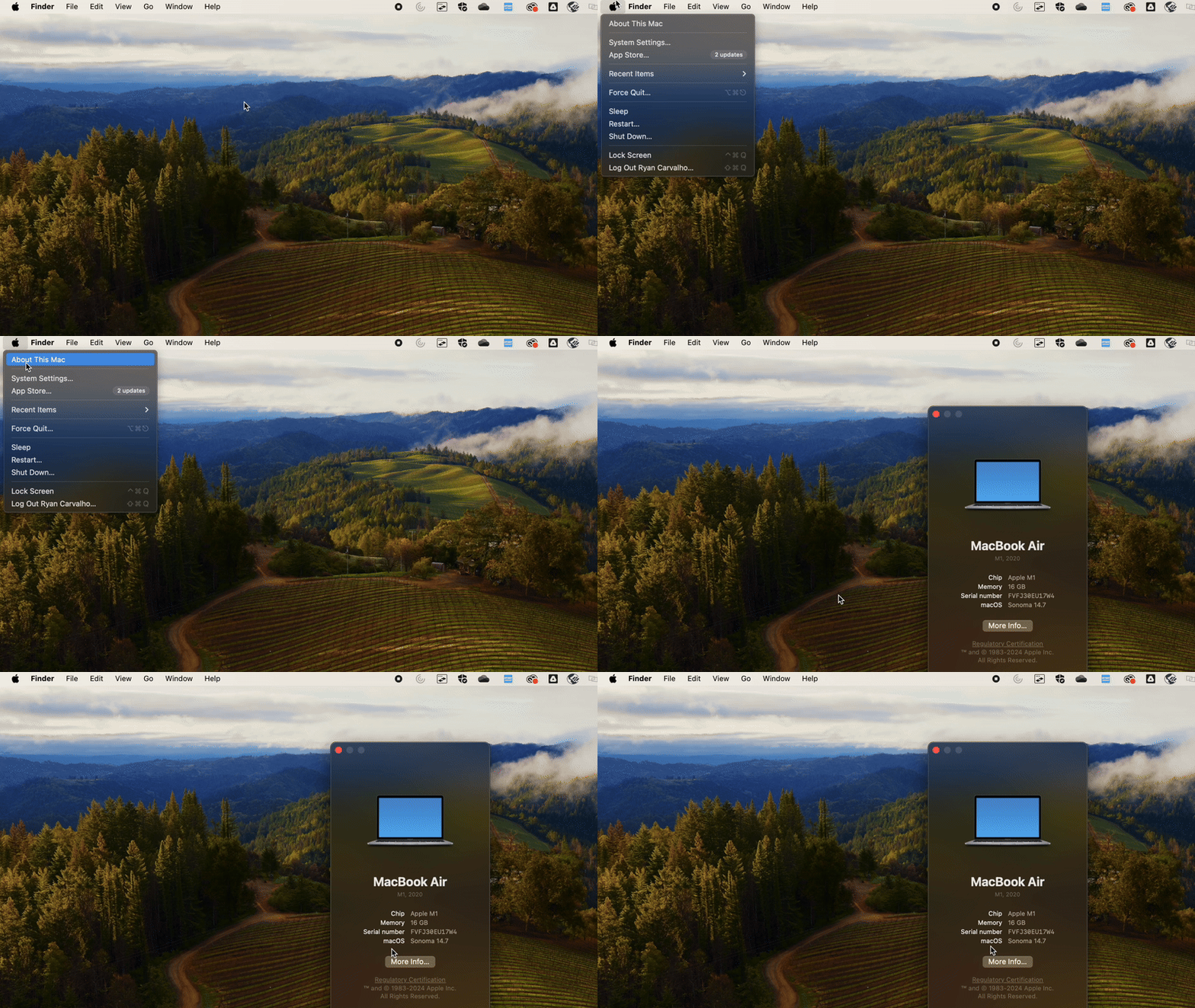
Click on the Apple Logo (top left hand corner) and click “About This Mac”
Look at the “macOS” section, if it says “Sequoia”, follow the instructions below on how to install the latest Sequoia update.
If your macOS version does NOT say “Sequoia”, follow these instructions to upgrade to Sequoia: Performing a Major macOS Upgrade.
Before You Start
- Be prepared for the update to take at least 30 minutes
- Connect to power if your battery is less than 50%
- Remain connected to WiFi – disconnecting from the WiFi will interrupt the download and installation
- Do not close your laptop lid throughout the entire process
Instructions
Open System Settings
(Apple Logo > System Settings…)

General > Software Update > Update Now
Once the update starts to download, you can continue to use your laptop until a restart is required.
FAQs
I clicked on Software Update but I don’t have any updates available. What does this mean?
This could either mean you have already installed the most recent update or your laptop needs to be restarted. Check to see if you already have the most recent update installed by clicking on the Apple Logo > About This Mac and see if the version number in the MacOS section is 15.7.5. If it is, you have the most recent update installed. If you have anything less than 15.7.5, restart your laptop and try again.
When I enter my password, I get an error saying “Authorization Disabled” or it’s saying my password is wrong.
Launch Self Service and search for and run the program called “Secure Token Verify and Enable”. Enter your password at the prompt and try again to install the update.
I get prompted for admin credentials when I try to update
If you are being prompted for admin credentials you are likely trying to install a major upgrade instead of installing updates for your current OS version. First, make sure you are currently on Sequoia (see Prerequisites). If you are not on Sequoia, follow the instructions for Performing a Major macOS Upgrade. Otherwise, be sure to carefully follow the instructions and video guide on how to update. If you still are having difficulty updating, please visit a Wahi Lolouila.
I am still receiving Missing Kuleana emails about my laptop not being updated even though I just updated.
If you have verified that your laptop has successfully installed the latest update (15.7.5 – see Prerequisites), but you are still receiving missing kuleana emails, you may need to sync your laptop with our system. To do this, launch Self Service, then search for and run a program called “Recon”. This will sync the latest system information on your laptop with our system.