How to embed Voicethread videos

October 1st, 2009 by Darrell Kim

How to embed Voicethread (and other flash) videos:
Note that this will not work for all flash video sites, it depends on how open the video site chooses to be.

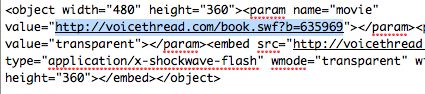
1. Copy embed code from Voicethread, find URL to video within the embed code (highlighted text):
Picture 36

2. When writing new Post, click on Flash button (silver f, second from right) in toolbar:
Picture 112

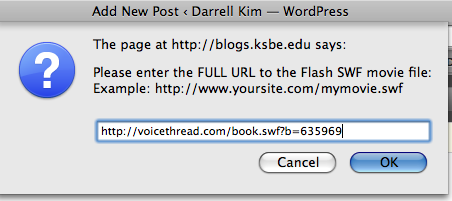
3. Paste in URL from embed code:
Picture 37

4. Enter 400 for width, then 300 for height when prompted.

5. Publish your post and test.

6. Pau!

Help! I have comment spam…

September 10th, 2009 by Darrell Kim

Congratulations, this means that your KS Blog has found its way into the blogosphere. Once a blog gains “visibility” in search engines it will become the target of comment spam ( http://codex.wordpress.org/Comment_Spam).

The good news is by default, comments are moderated, so they never make it to the blog’s public view (please do not change this setting). The blog admin simply has to delete the offending comments. We are currently various anti-spam technologies which catch most of the comment spam, but some will still make it through. This is a normal part of blogging.

Adding YouTube videos

September 9th, 2009 by Darrell Kim

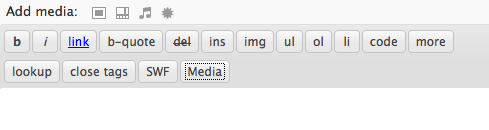
1. Click on the yellow “A” or “Media” button on the toolbar:
Picture 112
Picture 111

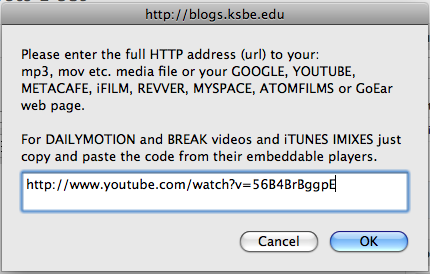
2. Paste in the YouTube video URL, then click OK:
Picture 114

3. Publish your post and enjoy!

Protected: protected

August 25th, 2009 by Darrell Kim

This post is password protected. To view it please enter your password below:


How to Add Files to Your Blog

July 19th, 2009 by Darrell Kim

Ever wanted to share documents on your blog? Posting PDF or Word documents can be a snap, just create a new Page or Post and follow the instructions below:

On the Add New Post page, above the area where you enter your post contents you’ll see the Add Media section:

Add media

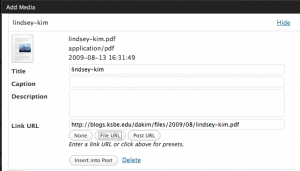
Click on the star icon (last one), then browse to the file you want to upload, select it then click on Upload. Enter a caption or description if you want to (it’s optional), then click on the Insert into Post button on the bottom. If the Link URL field is blank, you’ll need to first click on the File URL button before clicking on Insert into Post.

Add media dialog

A hyperlink to your document will be created in your post. Pau!

Can’t Login to Blackboard?

February 27th, 2009 by Darrell Kim

You can reset your Blackboard password using the following steps:

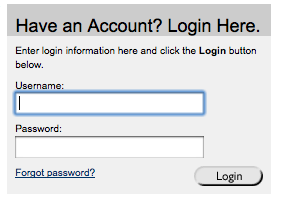
  1. Visit the Blackboard login page at http://bb.ksbe.edu, and click on the Forgot Password link.
    bb forgot password
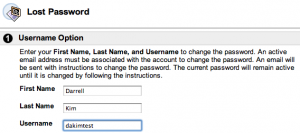
  2. Enter your First Name, Last Name, and Username (or Email) and click on Submit.
    bb forgot password step2
  3. If it finds your BB account, the system will email you a link that you can use to reset your password. If your account cannot be found, contact the Help Desk.

How to Reduce PDF Filesize in OSX

February 5th, 2009 by Darrell Kim

The default “Reduce File Size” option in OSX Preview often leaves you with undesirable results, pixellated images or unreadable text. If you’ve ever wished for the ability to control the quality/filesize balance, follow the instructions below:

  1. Launch the ColorSync Utility in Applications > Utilities, and click on Filters.
  2. Click on the Plus sign button at the bottom left to add a new custom Filter, I called mine “Reduce Filesize Mid-Quality.”
  3. Click on the little triangle to the right of the filter to add an effect, select Image Effects > Image Compression.
    colorsyncimagequal.png
  4. Choose JPEG as the Mode, and drag the slider to select the quality level you want. When I experimented with different levels, I found that the Min setting actually yields a pretty good quality, and results in the smallest filesize.
    imagequalitylow.png
  5. Now in Preview, open the PDF you would like to shrink, go to File > Save As and select PDF as the Format and change the Quartz Filter to the one created above, and click on Save.
    pdfsaveas.png
  6. Enjoy your new smaller PDF!

The file I tested with shrank from 12.2 MB to 1.7 MB, so the difference is substantial.

How to embed Vimeo (and other flash) videos

February 2nd, 2009 by Darrell Kim

How to embed Vimeo (and other flash) videos:
Note that this will not work for all flash video sites, it depends on how open the video site chooses to be.

1. Copy embed code from Vimeo, find URL to video within the embed code:
picture-17.png

2. When writing new Post, click on Flash button (silver f, second from right) in toolbar:
flashbutton.png

3. Paste in URL from embed code:
pasteurl.png

4. Enter 400 for width, then 300 for height when prompted.

5. Publish your post and test.

6. Pau!

5.com embed

January 30th, 2009 by Darrell Kim

Google Video

November 7th, 2008 by Darrell Kim